Quick answer
Most IPTV buffering starts in the home, not at the service: weak Wi-Fi, a crowded line or a tired device. Work through the nine fixes below in order, starting with an Ethernet cable and a router restart. Only when every channel fails on every device, phone included, is it time to suspect the service and message IPTV United Kingdom support.
Key takeaways
- A cable to the TV device fixes more freezing than any other single change.
- Narrow it down first: one channel, one device, or everything at once point to different causes.
- Smooth HD is better viewing than 4K that keeps pausing.
- Clearing the app cache and a full power-off restart solve most slow, sticky players.
Why does IPTV buffer?
Because the video reaches your device more slowly than it plays. The player holds a few seconds in reserve; when that reserve runs dry, it pauses to refill it, and you see the spinning circle.
Anything on the path between the server and your screen can slow the flow: a Wi-Fi signal fighting through walls, a line shared with downloads, a stick that has run for weeks without a restart or, less often, a fault on the service side. Most of those sit inside your home, which is good news, because they are yours to fix in minutes.
What are the 9 IPTV buffering fixes, in order?
Start at the top and test a channel after each step. The order runs from the fix that helps most often to the one that helps least.
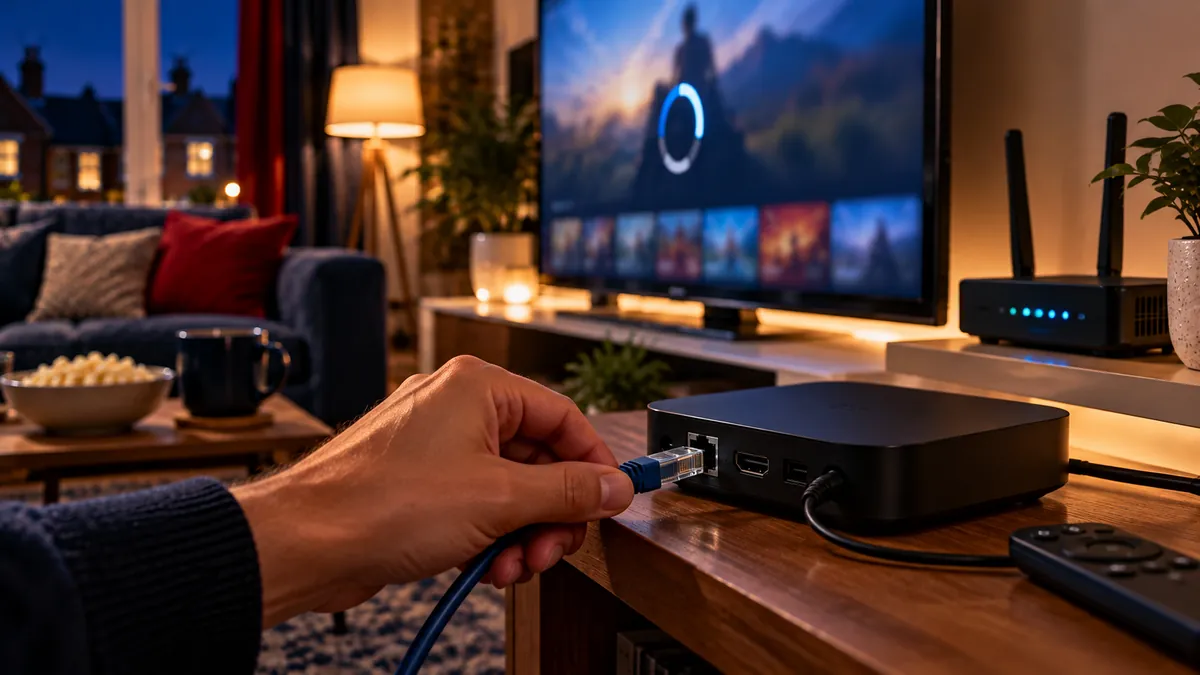
- Plug in an Ethernet cable. Wi-Fi is the most common cause of freezing. A cable to the TV, box or Fire TV Cube (or an Ethernet adapter for a stick) fixes most problems on its own. Powerline adapters are a good second choice.
- Move or restart the router. Turn it off for 30 seconds. If you must use Wi-Fi, use the 5 GHz band, keep the router out of cupboards, or add a mesh point near the TV.
- Measure the speed on the TV device in the evening. If the lowest of a few tests is below what your picture quality needs, the fix is the connection to the TV; our broadband speed guide has the figures per screen.
- Lower the quality. Switch from the 4K version of a channel to Full HD, or from Full HD to HD. Smooth beats sharp.
- Clear the app cache. On Fire TV go to Settings > Applications > Manage installed applications; on Android TV go to Settings > Apps. Choose the player and Clear cache.
- Restart the device properly. Unplug it from the power for 30 seconds. Sticks and boxes slow down when they run for weeks.
- Try another player or player setting. In IPTV Smarters, change Settings > Player selection; or try TiviMate or another app with the same login.
- Turn off your VPN. A distant VPN server adds delay and can cut speed. Test without it.
- Update everything. Update the device software and the player app; old versions can have streaming bugs.
Is it your setup or the service?
Look at what freezes. One channel points to that channel's source; one device points to that device or its Wi-Fi; everything on every device points to the router, the login or the service.
| What you notice | Most likely cause |
|---|---|
| Only one channel freezes | That channel's source; try its backup version and tell support |
| All channels freeze on one device | The device or its Wi-Fi signal |
| All channels freeze only at peak times | Busy home network or broadband congestion |
| Everything stops at once during a big event | Possible blocking rather than buffering |
| Nothing loads on any device | Login, router or service problem; restart the router and contact support |
The quickest test needs only your phone. Turn its Wi-Fi off and open the same channel on mobile data. Smooth on the phone means the fault is inside your home network; failing there as well means it is time to contact us. A stream that dies suddenly at kick-off and stays dead is a different pattern, and our page on court-ordered IPTV blocks in the UK shows how to recognise it.
Which fixes work for specific devices?
Each type of device has its own weak spot, so after the general fixes, check the one that matches yours.
- Firestick: use the 4K Max or the Cube for large channel lists, and add an Ethernet adapter. See our Firestick guide.
- Smart TVs: older or budget TVs have little memory. A stick or box often feels much faster; see the best IPTV box UK comparison.
- Android TV boxes: avoid running several heavy apps in the background and keep at least 1 GB of storage free.
- Computers: close cloud backups and downloads; see IPTV on Windows, Mac and VLC.
- Phones: switch from mobile data to Wi-Fi, or lower the quality to save data.
When the problem is that nothing opens at all rather than pauses, Golden Gate's IPTV not working guide is a useful checklist, and Multivision publishes its own buffering troubleshooting article if you want a different angle on the same problem.
What should you avoid doing?
Skip the quick-fix apps and the frantic channel hopping. Both make a struggling player worse.
"Speed booster" and "RAM cleaner" apps tend to slow TV devices down rather than speed them up. Flicking between channels while the app is struggling restarts the buffer every time, so give a channel a few seconds to settle. And a VPN is not a way around a court-ordered block; our page on whether you need a VPN for IPTV covers when one actually helps.
What if buffering continues after all nine fixes?
Then we want to hear about it, with details. Note which channels stall, on which device, at what time, and whether the phone-on-mobile-data test also failed.
That short list lets IPTV United Kingdom support tell a source problem from a home-network one straight away, instead of starting again at fix number one. If you are still deciding whether to buy, run the same checks during the free 24-hour trial on a busy evening, so you know how your own line behaves before you pay.
Frequently asked questions
Why does my IPTV keep buffering?
Usually weak Wi-Fi, a busy connection or a slow device. Try Ethernet, lower the quality and restart the router and the device.
Does clearing the app cache stop buffering?
Often, yes, when the player has become slow or sticky over time. Clear the cache in the device's app settings, then unplug the device for 30 seconds before testing again.
Why does IPTV buffer only in the evening?
Evenings are peak time for home networks and broadband. Ethernet and pausing other downloads usually help.
Is 4K more likely to buffer than HD?
Yes. A 4K stream needs far more data every second, so a borderline connection that plays HD smoothly can stall in 4K.
How do I know if the IPTV service is down?
If no channel works on any device, including a phone on mobile data, restart the router and contact support.