Quick answer
The Firestick Downloader app is a free Amazon Appstore tool that installs IPTV players the Appstore does not carry. It only works on sticks running Fire OS, not Vega OS. Check the software version, install Downloader, enable developer options, allow Downloader to install apps, then type the player address IPTV United Kingdom sends with your login.
Key takeaways
- Check the software first: Downloader works on Fire OS sticks, not on Vega OS.
- Downloader itself is free and comes from the Amazon Appstore.
- Type only player addresses you trust, never codes copied from forums or videos.
- Developer options stay hidden until you press OK on the device name seven times.
Does your Firestick run Fire OS or Vega OS?
Look in the About menu before anything else: the version number tells you in ten seconds. Amazon now ships Fire TV devices on two different systems. Fire OS sticks can install apps from outside the Appstore with Downloader. Newer sticks running Vega OS only install apps from the Amazon Appstore, so the Firestick Downloader method does not work on them.
- Go to Settings > My Fire TV > About.
- Read the line that shows the software version.
- A version beginning with 1. means Vega OS. Fire OS 7 or Fire OS 8 means you can carry on with this guide.
Not sure which model you own, or thinking of buying a new stick? Our Firestick model guide lists which Fire TV devices run which system. If yours turns out to be a Vega stick, message us before you buy a plan and we will tell you what can run on it. For phones, Smart TVs and computers in the same home, the device-by-device setup overview has a section for each.
How do you install the Downloader app?
Downloader is in the Amazon Appstore, so this part works like any other app install. It is made by AFTVnews and has an orange icon.
- From the home screen, open Find > Search.
- Type Downloader and select the orange Downloader app by AFTVnews.
- Select Download (or Get) and wait for it to install.
- Open it once and allow access to files if asked, then press Home.
How do you turn on developer options?
Press OK on your device name seven times in the About screen, then allow Downloader to install apps. Fire TV hides this setting on purpose, so you only do it once per stick:
- Go back to Settings > My Fire TV > About.
- Highlight your device name (for example Fire TV Stick 4K Max) and press OK on the remote seven times, until a message says you are now a developer.
- Press Back. A new menu, Developer options, now appears under My Fire TV.
- Open Developer options > Install unknown apps, find Downloader and switch it On.
On some older sticks the setting is called "Apps from Unknown Sources" and applies to all apps. Turn it on only while you install the player, then turn it off again if you prefer.
How do you install an IPTV player with Firestick Downloader?
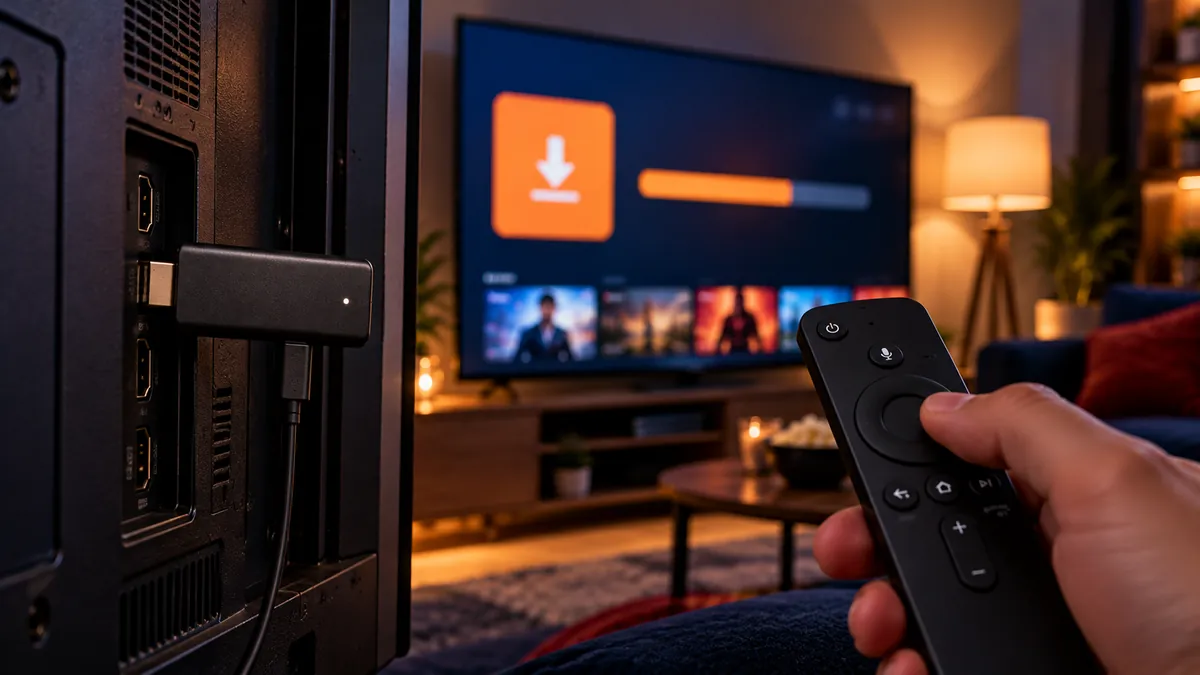
Type the player address into Downloader's address box, install the file it fetches, then sign in inside the player. The address is case-sensitive, so check every character before you press Go.
- Open Downloader.
- In the address box, type the app address we send you, carefully, and select Go.
- Wait for the download, then select Install when the app's screen appears.
- When it says App installed, select Done. Downloader may offer to delete the installation file; select Delete to save space.
- Go back to the home screen, open Your apps & channels, and move the player to the front row.
- Launch the player and pick the sign-in type that matches the details in our message, then copy them in letter by letter, including any port number after the server name.
Not sure whether your details are an M3U link or an Xtream Codes login? M3U playlists explained shows the difference in one table, and our IPTV Smarters Pro walkthrough covers the sign-in screen field by field. IPTVCA's Fire TV install page follows the same Downloader route from a Canadian viewer's side.
Is Downloader safe to use?
Downloader is a plain file fetcher: it is as safe as the address you type into it. The risk comes from what you install, not from the tool.
- Only enter addresses you trust, such as the one your provider sends. Do not install apps from random codes posted online.
- Choose mainstream players. Amazon now removes apps it flags for pirated content; what that means for each Fire TV model is covered in our buying guide.
- Avoid all-in-one apps with built-in channels. They are the first to be blocked and can carry unwanted software.
- Keep your Fire TV updated. Updates fix security issues and keep apps working.
A player app is only software, much like a web browser. Where the real legal line sits for UK viewers depends on the content, and that article explains it.
What should you tidy up after installing?
A few minutes of housekeeping keeps the stick fast and the player easy to find.
- Pin the player to the home screen. Hold the menu button on the app in Your apps & channels and choose Move to front.
- Delete the installation file if Downloader did not do it for you, to free storage.
- Turn off auto-play previews in Settings > Preferences > Featured Content to make the home screen lighter.
- Restart the stick once a week: hold Select and Play for five seconds.
- Keep Downloader installed. You will use it again when the player app needs an update.
If your stick still feels slow with a big channel list, the Fire TV Stick 4K Max or Fire TV Cube has more memory. Our IPTV box comparison weighs those against Android boxes and MAG.
What if the Firestick Downloader install fails?
Most failures come from one of five causes, and each has a quick fix you can try from the sofa.
| Problem | Fix |
|---|---|
| Developer options missing | Press OK on the device name seven times in About |
| "Install blocked" message | Turn on Install unknown apps for Downloader |
| Download fails | Check the address for typing mistakes and restart the stick |
| Downloader not in the Appstore | The stick may run Vega OS; check the software version |
| Not enough storage | Delete unused apps and the installation file |
If none of these clears it, take a photo of the exact error on screen and send it with your Fire TV model. The wording of the message usually points straight at the cause.
Frequently asked questions
What is the Downloader app on Firestick?
A free app from the Amazon Appstore that downloads and installs apps from a web address, used to install IPTV players.
Why can't I find Downloader on my Firestick?
Your stick may run Vega OS, which has no route for apps from outside the Appstore. Check the version under Settings > My Fire TV > About.
How do I enable developer options on Firestick?
Go to Settings > My Fire TV > About and press OK on the device name seven times.
Is it safe to use Downloader?
Yes, if you only install well-known apps from addresses you trust, such as the one your provider sends.
Do I need Downloader for every IPTV app?
Only for players that are not in the Amazon Appstore. If your player is in the Appstore, install it from there.